Install n8n with Docker: Step-by-Step Docker Compose Setup
A complete, copy-paste Docker and Docker Compose install for n8n — persistent volumes, PostgreSQL, HTTPS through a reverse proxy, backups, and the environment variables that actually matter in production.
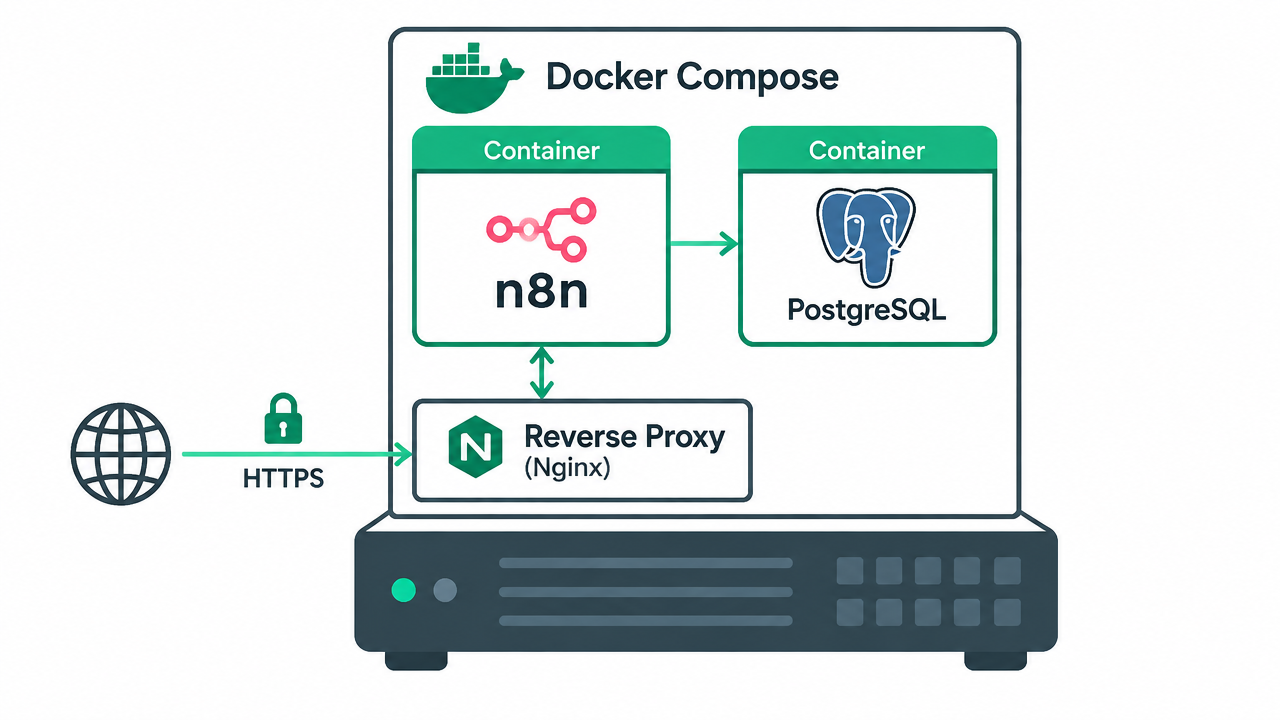
Docker is the install method the n8n community settles on for one simple reason: it keeps the runtime, the database, and the configuration in a shape you can rebuild from scratch in under a minute. This page walks the same install options covered in our n8n self-hosted guide, but goes deeper on the Docker Compose path — the one you should be using for anything you depend on.
Everything below uses the official image from the n8n Docker documentation. If you only want to try n8n for ten minutes, start at Step 1 and stop. If you want a server you can leave running, work through all seven steps.
Before you start
- A Linux server or local machine with Docker Engine and the Docker Compose plugin installed
- A domain name pointed at the server (required for reliable webhooks and HTTPS)
- Ports 80 and 443 open, plus shell access with sudo
- Roughly 2GB RAM if you plan to run PostgreSQL alongside n8n
Step-by-Step Docker Compose Setup
Run n8n once to confirm Docker works
Before building anything permanent, confirm the image runs. This container is removed the moment you stop it, so nothing is persisted:
docker run -it --rm \
  --name n8n \
  -p 5678:5678 \
  docker.n8n.io/n8nio/n8n
Open http://localhost:5678 (or the server IP on port 5678) and you should see the owner account setup screen. Stop the container with Ctrl+C once you have seen it — the real install starts at Step 2.
Create the project directory and secrets
Keep everything for the instance in one folder so backups and migrations are a single directory copy. Generate a strong encryption key now and store it in your password manager before you go any further:
mkdir -p ~/n8n && cd ~/n8n
openssl rand -hex 32   # copy this value, it is your N8N_ENCRYPTION_KEY
openssl rand -hex 24   # and this one for the database password
Losing the encryption key means every saved credential in your backups becomes unreadable. It is the single most commonly regretted omission in a self-hosted n8n setup.
Write the .env file
Docker Compose reads this file automatically. Never commit it to a repository:
# ~/n8n/.env
POSTGRES_PASSWORD=paste-the-second-random-string
N8N_ENCRYPTION_KEY=paste-the-first-random-string
N8N_HOST=n8n.yourdomain.com
GENERIC_TIMEZONE=Europe/BerlinWrite docker-compose.yml
This is the production-ready stack: n8n plus PostgreSQL, both with named volumes, a health check so n8n waits for the database, and execution pruning enabled from day one. Note that the n8n port is bound to 127.0.0.1 — the reverse proxy in Step 6 is what faces the internet.
services:
  postgres:
    image: postgres:16
    restart: unless-stopped
    environment:
      - POSTGRES_USER=n8n
      - POSTGRES_PASSWORD=${POSTGRES_PASSWORD}
      - POSTGRES_DB=n8n
    volumes:
      - postgres_data:/var/lib/postgresql/data
    healthcheck:
      test: ['CMD-SHELL', 'pg_isready -U n8n']
      interval: 10s
      timeout: 5s
      retries: 5

  n8n:
    image: docker.n8n.io/n8nio/n8n:latest
    restart: unless-stopped
    ports:
      - '127.0.0.1:5678:5678'
    environment:
      - DB_TYPE=postgresdb
      - DB_POSTGRESDB_HOST=postgres
      - DB_POSTGRESDB_DATABASE=n8n
      - DB_POSTGRESDB_USER=n8n
      - DB_POSTGRESDB_PASSWORD=${POSTGRES_PASSWORD}
      - N8N_ENCRYPTION_KEY=${N8N_ENCRYPTION_KEY}
      - N8N_HOST=${N8N_HOST}
      - N8N_PROTOCOL=https
      - N8N_PORT=5678
      - WEBHOOK_URL=https://${N8N_HOST}/
      - GENERIC_TIMEZONE=${GENERIC_TIMEZONE}
      - EXECUTIONS_DATA_PRUNE=true
      - EXECUTIONS_DATA_MAX_AGE=168
    volumes:
      - n8n_data:/home/node/.n8n
    depends_on:
      postgres:
        condition: service_healthy

volumes:
  postgres_data:
n8n_data:Start the stack
Bring everything up in the background and watch the logs until n8n reports it is listening:
docker compose up -d
docker compose logs -f n8n
A healthy start ends with a line confirming the editor is available on port 5678. If the container restarts in a loop, the logs almost always name the offending environment variable directly.
Put HTTPS in front with Caddy
n8n should not be exposed on a raw port. Caddy is the shortest path to working TLS because it requests and renews Let's Encrypt certificates on its own. Create a two-line Caddyfile:
n8n.yourdomain.com {
  reverse_proxy 127.0.0.1:5678
}
Then reload Caddy. Nginx and Traefik work just as well if you already run one — the only requirement is that the proxy forwards WebSocket upgrade headers, otherwise the editor loads but live execution updates never appear.
Set up backups before you build anything
A nightly database dump pushed off the server, plus the encryption key held separately, is the whole recovery story. Add this to cron:
0 3 * * * cd ~/n8n && docker compose exec -T postgres \
  pg_dump -U n8n n8n | gzip > ~/backups/n8n-$(date +\%F).sql.gz
Copy those dumps to object storage or a second machine — a backup that only exists on the server it protects is not a backup. Exporting important workflows as JSON occasionally gives you a second, database-independent copy.
Environment Variables That Matter
n8n exposes a large number of settings, but this short list covers almost every production install. The full environment variable reference covers the rest.
| Variable | Example | Why it matters |
|---|---|---|
| N8N_ENCRYPTION_KEY | A long random string you generate | Encrypts stored credentials. Never change it after first run; back it up with the database. |
| N8N_HOST | n8n.yourdomain.com | The public hostname n8n believes it is served on. |
| N8N_PROTOCOL | https | Used when n8n builds absolute URLs. |
| WEBHOOK_URL | https://n8n.yourdomain.com/ | The base URL handed to external services in webhook nodes. |
| GENERIC_TIMEZONE | Europe/Berlin | Default timezone for Schedule/Cron triggers. |
| DB_TYPE | postgresdb | Switches storage from SQLite to PostgreSQL. |
| DB_POSTGRESDB_HOST | postgres | The Compose service name of your database container. |
| EXECUTIONS_DATA_PRUNE | true | Deletes old execution history so the database stays small. |
| EXECUTIONS_DATA_MAX_AGE | 168 | Hours of execution history to keep (168 = 7 days). |
Updating and Rolling Back
Because your data lives in volumes and PostgreSQL rather than in the image, updating is a pull and a recreate:
cd ~/n8n
docker compose pull
docker compose up -d
docker image prune -f
For production, pin a specific tag such as n8nio/n8n:1.80.0 instead of latest so upgrades are a deliberate act. Take a database dump first, read the release notes, and rolling back becomes as simple as pointing the tag at the previous version and restarting.
Migrating an existing SQLite install
If you started with the plain docker run setup and want the Compose stack, export your workflows as JSON from the editor, bring up the PostgreSQL stack fresh, import the workflows, and re-enter credentials. Credentials do not transfer between databases in readable form, which is exactly what the encryption key is protecting.
Docker Install Troubleshooting
| Symptom | Usual cause | Fix |
|---|---|---|
| Container exits immediately | Port 5678 already in use, or a malformed env var | Run docker compose logs n8n and read the last lines; change the host port mapping if it is occupied. |
| "Unauthorized" on every credential after restart | Encryption key changed, or the data volume was not mounted | Restore the original N8N_ENCRYPTION_KEY and confirm the volume line is present in the Compose file. |
| Webhooks never arrive | WEBHOOK_URL points at localhost or the proxy is not forwarding | Set WEBHOOK_URL to the public HTTPS domain and re-save the workflow. |
| Editor loads but websocket errors appear | Reverse proxy is not upgrading connections | Enable WebSocket upgrade headers in the proxy config. |
| Memory grows over days | Execution history is never pruned | Set EXECUTIONS_DATA_PRUNE=true and an EXECUTIONS_DATA_MAX_AGE value. |
| Slow under concurrent runs | Still on the default SQLite database | Migrate to the PostgreSQL Compose setup above. |
Once Your Instance Is Running
A fresh instance is a blank canvas, which is the slowest way to start. Importing a working template and editing it is far quicker than building from nothing — every template in our n8n template marketplace is portable JSON that imports into a self-hosted instance in seconds.
From there, the AI agent guide and n8n use cases are good next reads, and the community forum is where most Docker-specific edge cases get answered.
Frequently Asked Questions
What is the easiest way to install n8n with Docker?
A single docker run command with a named volume attached is the fastest route: it pulls the official image, exposes n8n on port 5678, and keeps your workflows and credentials between restarts. For anything you rely on day to day, move to Docker Compose with PostgreSQL instead, because it is easier to back up, upgrade, and scale.
Do I need Docker Compose, or is docker run enough?
docker run is fine for testing on a laptop. Docker Compose is the right choice for a server: it keeps your environment variables, database, volumes, and restart policy in one version-controlled file, so rebuilding the instance is a single command rather than a remembered shell line.
Should I use SQLite or PostgreSQL with Docker?
n8n defaults to SQLite, which is fine for light personal use. PostgreSQL is recommended once you run workflows concurrently or store meaningful execution history, because SQLite write locking becomes the bottleneck and backups are harder to take cleanly while the instance is running.
What is N8N_ENCRYPTION_KEY and why does it matter?
It is the key n8n uses to encrypt stored credentials. If you do not set it explicitly, n8n generates one and writes it into the data volume — and if that volume is lost or the key changes, every saved credential becomes unreadable. Set it yourself, store it in a password manager, and back it up alongside the database.
How do I expose n8n over HTTPS?
Put a reverse proxy in front of the container. Caddy is the simplest option because it provisions and renews Let’s Encrypt certificates automatically; Nginx and Traefik work equally well if you already run one. Then set N8N_HOST, N8N_PROTOCOL and WEBHOOK_URL so n8n generates webhook URLs on your real domain.
Why are my webhooks not firing after a Docker install?
Nearly always because WEBHOOK_URL still points at localhost or the container port is not publicly reachable. External services need a public HTTPS URL to call. Set WEBHOOK_URL to your domain, confirm the proxy forwards to port 5678, and re-save the workflow so the webhook node re-registers its URL.
How do I update n8n running in Docker?
Pull the newer image and recreate the container with the same volumes attached: docker compose pull followed by docker compose up -d. Your data lives in the volume and the database, not the image, so it survives. Read the release notes first and take a database dump before major version jumps.
How much RAM does a Docker n8n instance need?
Around 1GB works for a light personal instance running SQLite. Budget 2GB or more once you add PostgreSQL and run several workflows concurrently, and enable execution data pruning so old run history does not grow without limit.
Instance up and running?
Import a ready-made workflow and have something useful running in minutes — or hand the setup, hardening, and maintenance to someone who does it every week.