Zendesk: Visual Summarization, Sentiment Analysis, and Slack Integration
Curated by n8n Markets team
Last updated: March 8, 2026
## Analyze and Explore your ZenDesk Support Requests using AI-Powered Knowledge Graph This template helps you create an interactive [InfraNodus knowledge graph](https://infranodus.com) for your ZenDesk tickets using any search criteria (e.g. after a certain date, specific status, sender, keyword) that will automatically be sent to a selected Slack channel. Here's an example of the [InfraNodus graph](https://infranodus.com) that shows the main topics and gaps in ZenDesk support tickets: 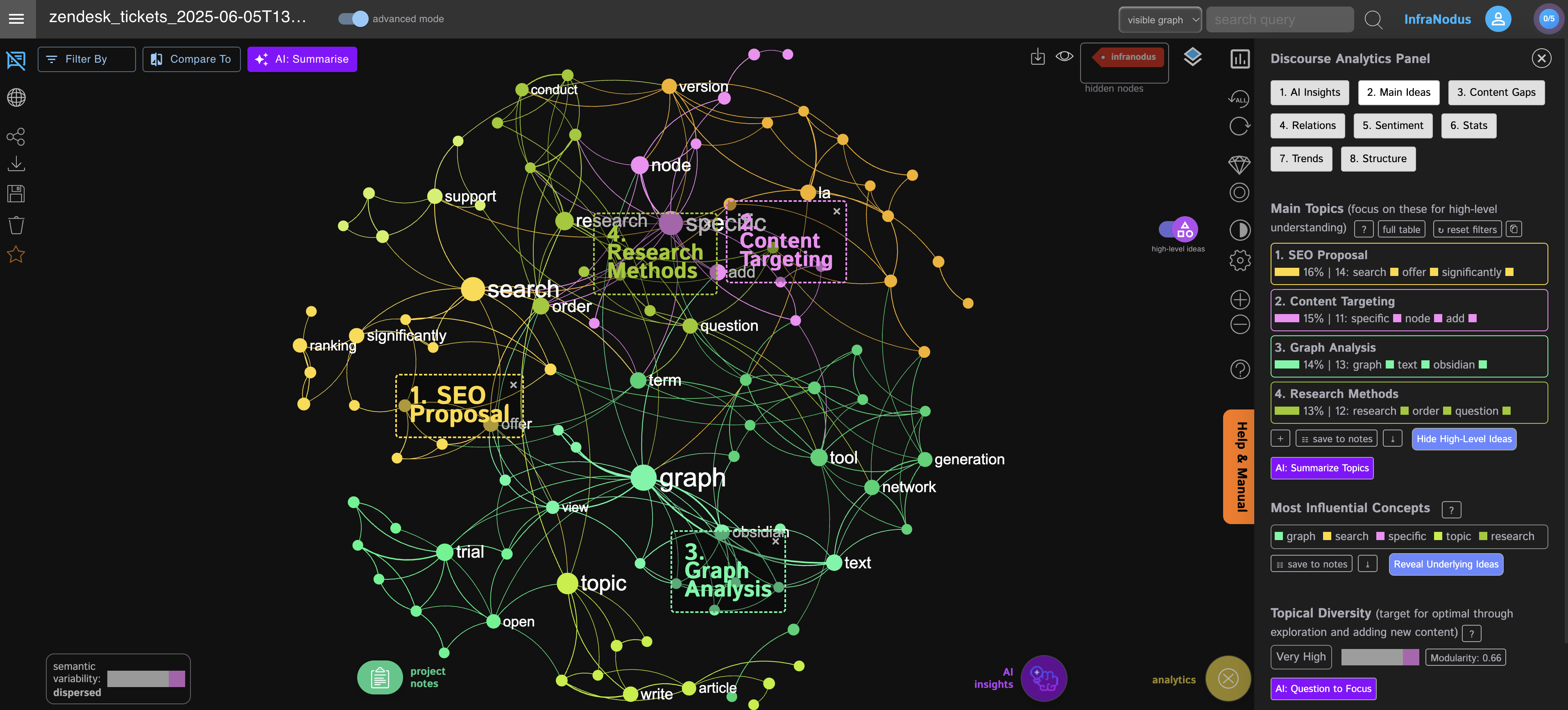 ## You can use the workflow to: - Get an instant overview of the main topics your customers are talking about - Generate business and product ideas based on the blind spots identified using the [InfraNodus AI](https://infranodus.com) - See which topics correlate to the negative / positive sentiment understanding the weak and strong sides of your product and support - Receive daily notifications on the main topics your customers are talking about via Slack / Telegram / Email and other channels - Perform detailed search using a password-protected web form for tickets filtered by a certain date, status, tag, sender, keyword. - Use the interactive graph to explore specific topics and concepts your customers are talking about — a great way to engage with their concerns in a non-linear way, bypassing the boring tabular interface - Use the graph to explore the support requests by specific segments — e.g. status, priority, sentiment, tags, urgency. - Use the graph generated as an AI expert available to your AI agents in other n8n workflows via [InfraNodus GraphRAG](https://infranodus.com/use-case/ai-knowledge-graphs). For instance, you could connect your knowledge base to the support tickets graph and let the agent discover possible solutions to your customers' most typical problems. See an [sample template here](https://n8n.io/workflows/4402-ai-chatbot-agent-with-a-panel-of-experts-using-infranodus-graphrag-knowledge/). ## How it works You can start this workflow - manually, - with a daily / weekly trigger, or - via a password-protected web form, where you can provide search requests. Once started, it will perform a ZenDesk tickets search with the default or your custom criteria. Then it will use the search results to generate an [InfraNodus graph](https://infranodus.com) (or add the new data to an existing one), and — finally — use the InfraNodus AI endpoints to generate a topical summary and a product business idea based on the blind spots identified. The results are delivered a channel of your choice. Here's a description step by step: 1. Start the workflow (manually or on schedule) 2. Assign values to variables (search criteria, graph name) 3. Perform ZenDesk support tickets search 4. Convert the data received and submit it to [InfraNodus](https://infranodus.com) to generate a knowledge graph 5. Generate topical summary with [InfraNodus](https://infranodus.com) 6. Generate a business idea with [InfraNodus](https://infranodus.com) (you can also change the setting to generate a question instead) 7. Send a notification via Slack / Telegram / Email or back to the webform ## How to use You need an [InfraNodus API account and key](https://infranodus.com/use-case/ai-knowledge-graphs) to use this workflow. You also need a ZenDesk account. It takes about 5 minutes to set everything up. - Create an InfraNodus account. - Get the API key at [https://infranodus.com/api-access](https://infranodus.com/api-access) and create a Bearer authorization key for the InfraNodus HTTP nodes. - Add the authorization key to all the InfraNodus HTTP nodes in the template (Steps 3, 5, and 6). - Generate a ZenDesk authorization token following the instructions in n8n's ZenDesk node (Step 3). - Optionally: connect your Slack or Telegram or Gmail account to receive automated notifications with the link to the graph, once the workflow is ready (it takes about 30 seconds to run). - Run it with using the form to play around with the search criteria that works best for you (you can leave everything empty at first), then choose the parameters you like and activate the Daily Trigger node to receive executive summaries to a channel of your choice. - Open the graph in [InfraNodus](https://infranodus.com) and use our [customer feedback analysis guide](https://support.noduslabs.com/hc/en-us/articles/19917497109020-Qualitative-Analysis-of-Interviews-Open-Ended-Survey-Responses-and-Customer-Feedback) to explore the graph and generate new insights. ## Requirements - An [InfraNodus](https://infranodus.com/use-case/ai-knowledge-graphs) account and API key - A ZenDesk API key - (Optional) — a Slack / Telegram / Gmail connection for notifications ## FAQ 1. What are the best use cases to try? I love to set the graph to deliver me a daily visual briefing of what's happening in my support portal. It shows me the main topics and gaps and generates p
What's Included
- Complete n8n workflow template with 0 nodes. Ready to import and customize.
Requirements
n8n instance (self-hosted or cloud). credentials.
How to Use
1. Download the workflow JSON 2. Import into your n8n instance 3. Configure credentials for 4. Activate and enjoy automation
Apps in this n8n workflow
How to import this template into n8n
- Download the workflow JSON file from this page.
- In n8n, open Workflows, create a new workflow and choose Import from File.
- Open each node that shows a warning and connect your own credentials.
- Run the workflow once manually to check the output before you activate it.
- Importable n8n workflow JSON file
- Download with Builder Pro or Agency Unlimited
- Built for n8n v1.0++
- Setup time: 5-15 min
Included in Builder Pro — $19/mo, 4,177 premium workflows
Before you activate
Templates are reviewed before they are listed. Test with your own credentials and data before running it in production.
100% Secure Checkout
Refund requests within 7 days of a new subscription
Dependencies & Requirements
⚠️ 2 services require credentials. Make sure you have accounts set up before importing.
0 reviews
No reviews yet.
Questions & Answers
Log in to ask a question.
No questions yet. Be the first to ask!
People Also Bought
Related Automation n8n templates
- Generate AI Videos with Google Veo3, Save to Google Drive and Upload to YouTube
- Scrape and summarize webpages with AI
- Create a Branded AI-Powered Website Chatbot
- Angie, Personal AI Assistant with Telegram Voice and Text
- AI agent chat
- Automated Web Scraping: email a CSV, save to Google Sheets & Microsoft Excel
- Respond to WhatsApp Messages with AI Like a Pro!
- Basic Automatic Gmail Email Labelling with OpenAI and Gmail API