Manage Shopify Store via Conversational OpenAI Assistant with SmartCommerce
Curated by n8n Markets team
Last updated: June 28, 2026
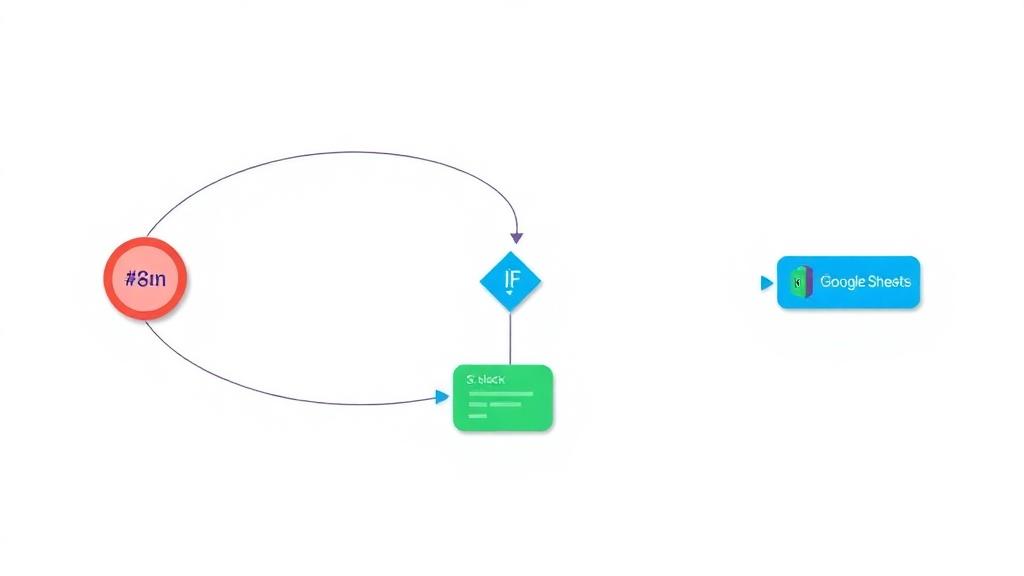
# Shopify MCP AI Agent Workflow for n8n ## Overview This n8n workflow showcases a full-featured AI-powered assistant connected to a Shopify store through a custom MCP (Multi-Channel Commerce Platform) Server toolkit. It empowers users to automate comprehensive Shopify store management by leveraging AI to interact conversationally with their data and operations. The workflow can create, fetch, search, update, and delete Shopify products and orders, all triggered via simple chat messages, making day-to-day store operations frictionless and highly efficient. Core capabilities include: - Product and order management (CRUD) via chat commands. - Smart retrieval: AI proactively fetches details instead of asking repeated questions. - Contextual memory: AI uses n8n memory to provide context-aware, fluent responses. - End-to-end automation: Connects Shopify, OpenAI, and n8n’s automation logic for seamless workflows. This solution is ideal for Shopify merchants, agencies, and developers aiming to reduce manual overhead and enable conversational, AI-powered commerce automation in their operations. ## 🎬 [Watch Demo Video on YouTube](https://youtu.be/5ZXKNVWXojA) * ## Step-by-Step Setup Guide Follow these steps to import and configure the Shopify MCP AI Agent workflow in n8n: ### 1. Import the Workflow File - Download the workflow file from this Creator Hub listing. - In your n8n instance, go to Workflows > Import from File and upload the JSON. ### 2. Prepare Shopify Access - Log in to your [Shopify admin](https://shopify.com/admin). - Create a Custom App or use an existing app and retrieve the Admin API Access Token. - Storefront access: Ensure your app has relevant permissions for Products, Orders, Discounts, and Store Settings. ### 3. Set Up Credentials in n8n - In n8n, navigate to Credentials and add a new Shopify API credential using your Access Token. - Name it something memorable (e.g., Shopify Access Token account) to match the credential used in the workflow nodes. ### 4. Configure the MCP Server Connection - Make sure your MCP Server is running and accessible with API endpoints for product/order management. - Update any relevant connection endpoints in the workflow if you run your MCP Server locally or in a different location. ### 5. Connect OpenAI or Other LLM Provider - Provide your API key for OpenAI GPT or a compatible model. - Link the credential to the OpenAI Chat Model node (replace with other providers if required). ### 6. (Optional) Customize for Your Needs - Tweak node logic, add new triggers, or extend memory features as required. - Add, remove, or restrain the AI’s capabilities to fit your operational needs. - Configure chat triggers for more personalized workflows. ### 7. Testing - Use the “When chat message received” trigger or send http requests to the workflow’s endpoint. - Example: “Create an order for Jane Doe, 3 Black T-shirts” or “Show today’s fulfilled orders”. - The workflow and AI Agent will handle context, fetch/store data, and reply accordingly. ### 8. Ready to Automate! - Begin leveraging conversational automation to manage your Shopify store. - For additional tips, consult the workflow’s internal documentation and n8n’s official guides. * ## Additional Notes - This template includes all core Shopify product and order operations. - The AI agent auto-resolves context, making routine admin tasks simple and quick. - Extend or fork the workflow to suit niche scenarios—discounts, analytics, and more. - Visual thumbnail and schematic are included for easy reference. *
What's Included
- Complete n8n workflow template with 0 nodes. Ready to import and customize.
Requirements
n8n instance (self-hosted or cloud). credentials.
How to Use
1. Download the workflow JSON 2. Import into your n8n instance 3. Configure credentials for 4. Activate and enjoy automation
Apps in this n8n workflow
How to import this template into n8n
- Download the workflow JSON file from this page.
- In n8n, open Workflows, create a new workflow and choose Import from File.
- Open each node that shows a warning and connect your own credentials.
- Run the workflow once manually to check the output before you activate it.
- Importable n8n workflow JSON file
- Download with Builder Pro or Agency Unlimited
- Built for n8n v1.0++
- Setup time: 5-15 min
Included in Builder Pro — $19/mo, 4,177 premium workflows
Before you activate
Templates are reviewed before they are listed. Test with your own credentials and data before running it in production.
100% Secure Checkout
Refund requests within 7 days of a new subscription
Dependencies & Requirements
⚠️ 2 services require credentials. Make sure you have accounts set up before importing.
0 reviews
No reviews yet.
Questions & Answers
Log in to ask a question.
No questions yet. Be the first to ask!
People Also Bought
Related Automation n8n templates
- Generate AI Videos with Google Veo3, Save to Google Drive and Upload to YouTube
- Scrape and summarize webpages with AI
- Create a Branded AI-Powered Website Chatbot
- Angie, Personal AI Assistant with Telegram Voice and Text
- AI agent chat
- Automated Web Scraping: email a CSV, save to Google Sheets & Microsoft Excel
- Respond to WhatsApp Messages with AI Like a Pro!
- Basic Automatic Gmail Email Labelling with OpenAI and Gmail API