Automated AI Lead Enrichment: Hubspot to Explorium for Enhanced Prospect Data
Curated by n8n Markets team
Last updated: March 8, 2026
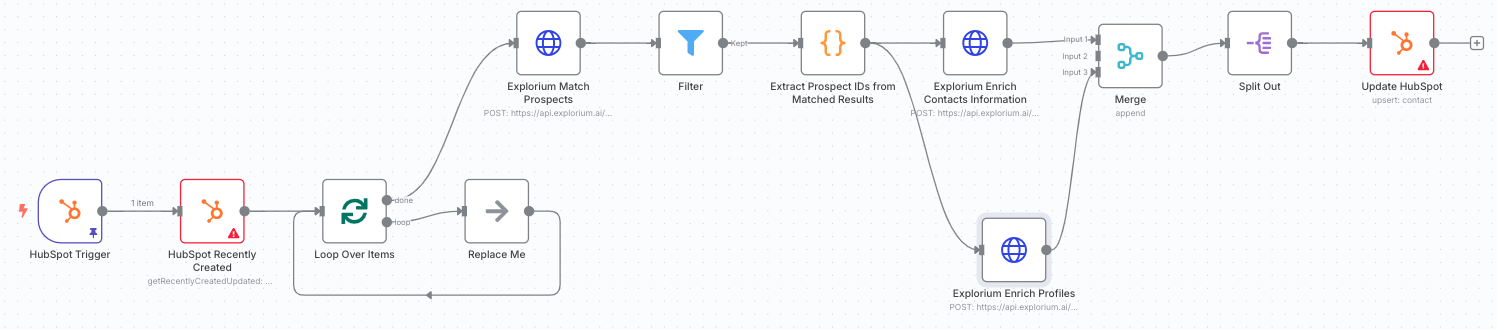
HubSpot Contact Enrichment with Explorium # Template Download the following json file and import it to a new n8n workflow: [hubspot\_flow.json](https://drive.usercontent.google.com/u/0/uc?id=1jbXjAIWEcyQoAAZQNQVLgoKw5jC-gF2h\&export=download) 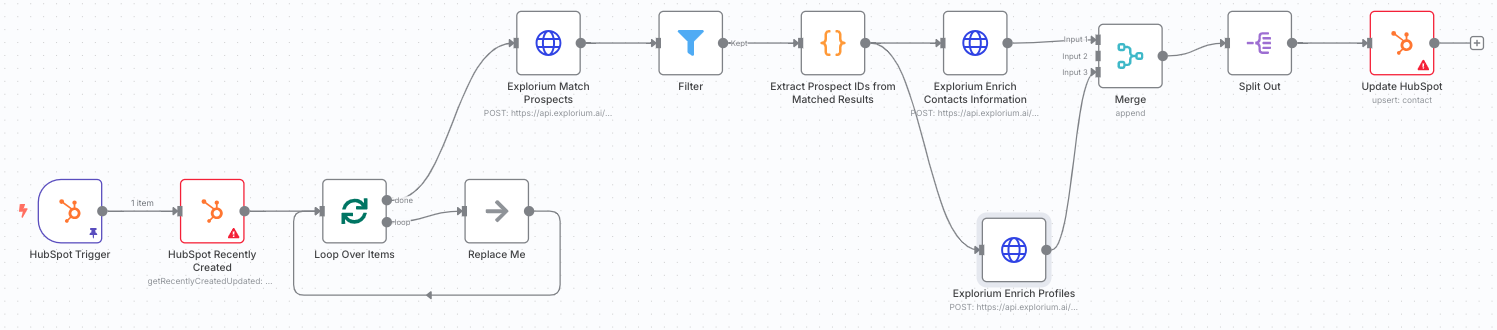 # Overview This n8n workflow monitors your HubSpot instance for newly created contacts and automatically enriches them with additional contact information. When a contact is created, the workflow: 1. Detects the new contact via HubSpot webhook trigger 2. Retrieves recent contact details from HubSpot 3. Matches the contact against Explorium's database using name, company, and email 4. Enriches the contact with professional emails and phone numbers 5. Updates the HubSpot contact record with discovered information This automation ensures your sales and marketing teams have complete contact information, improving outreach success rates and data quality. # Key Features * Real-time Webhook Trigger: Instantly processes new contacts as they're created * Intelligent Matching: Uses multiple data points (name, company, email) for accurate matching * Comprehensive Enrichment: Adds both professional and work emails, plus phone numbers * Batch Processing: Efficiently handles multiple contacts to optimize API usage * Smart Data Mapping: Intelligently maps multiple emails and phone numbers * Profile Enrichment: Optional additional enrichment for deeper contact insights * Error Resilience: Continues processing other contacts if some fail to match # Prerequisites Before setting up this workflow, ensure you have: 1. n8n instance (self-hosted or cloud) 2. HubSpot account with: * Developer API access (for webhooks) * Private App or OAuth2 app created * Contact object permissions (read/write) 3. Explorium API credentials (Bearer token) - [Get explorium api key](https://developers.explorium.ai/reference/getting_your_api_key) 4. Understanding of HubSpot contact properties # HubSpot Requirements ## Required Contact Properties The workflow uses these HubSpot contact properties: * `firstname` - Contact's first name * `lastname` - Contact's last name * `company` - Associated company name * `email` - Primary email (read and updated) * `work_email` - Work email (updated by workflow) * `phone` - Phone number (updated by workflow) ## API Access Setup 1. Create a Private App in HubSpot: * Navigate to Settings → Integrations → Private Apps * Create new app with Contact read/write scopes * Copy the Access Token 2. Set up Webhooks (for Developer API): * Create app in HubSpot Developers portal * Configure webhook for contact.creation events * Note the App ID and Developer API Key ## Custom Properties (Optional) Consider creating custom properties for: * Multiple email addresses * Mobile vs. office phone numbers * Data enrichment timestamps * Match confidence scores # Installation & Setup ## Step 1: Import the Workflow 1. Copy the workflow JSON from the template 2. In n8n: Navigate to Workflows → Add Workflow → Import from File 3. Paste the JSON and click Import ## Step 2: Configure HubSpot Developer API (Webhook) 1. Click on the HubSpot Trigger node 2. Under Credentials, click Create New 3. Enter your HubSpot Developer credentials: * App ID: From your HubSpot app * Developer API Key: From your developer account * Client Secret: From your app settings 4. Save as "HubSpot Developer account" ## Step 3: Configure HubSpot App Token 1. Click on the HubSpot Recently Created node 2. Under Credentials, click Create New (App Token) 3. Enter your Private App access token 4. Save as "HubSpot App Token account" 5. Apply the same credentials to the Update HubSpot node ## Step 4: Configure Explorium API Credentials 1. Click on the Explorium Match Prospects node 2. Under Credentials, click Create New (HTTP Header Auth) 3. Configure the authentication: * Name: `Authorization` * Value: `Bearer YOUR_EXPLORIUM_API_TOKEN` 4. Save as "Header Auth Connection" 5. Apply to all Explorium nodes: * Explorium Enrich Contacts Information * Explorium Enrich Profiles ## Step 5: Configure Webhook Subscription 1. In HubSpot Developers portal: * Go to your app's webhook settings * Add subscription for `contact.creation` events * Set the target URL from the HubSpot Trigger node * Activate the subscription ## Step 6: Activate the Workflow 1. Save the workflow 2. Toggle the Active switch to ON 3. The webhook is now listening for new contacts ## Node Descriptions 1. HubSpot Trigger: Webhook that fires when new contacts are created 2. HubSpot Recently Created: Fetches details of recently created contacts 3. Loop Over Items: Processes contacts in batches of 6 4. Explorium Match Prospects: Finds matching person in Explorium database 5. Filter: Validates successful matches 6. Extract Prospect IDs: Collects matched prospect identifiers 7. Enrich Co
What's Included
- Complete n8n workflow template with 0 nodes. Ready to import and customize.
Requirements
n8n instance (self-hosted or cloud). credentials.
How to Use
1. Download the workflow JSON 2. Import into your n8n instance 3. Configure credentials for 4. Activate and enjoy automation
Apps in this n8n workflow
How to import this template into n8n
- Download the workflow JSON file from this page.
- In n8n, open Workflows, create a new workflow and choose Import from File.
- Open each node that shows a warning and connect your own credentials.
- Run the workflow once manually to check the output before you activate it.
- Importable n8n workflow JSON file
- Download with Builder Pro or Agency Unlimited
- Built for n8n v1.0++
- Setup time: 5-15 min
Included in Builder Pro — $19/mo, 4,177 premium workflows
Before you activate
Templates are reviewed before they are listed. Test with your own credentials and data before running it in production.
100% Secure Checkout
Refund requests within 7 days of a new subscription
Dependencies & Requirements
⚠️ 2 services require credentials. Make sure you have accounts set up before importing.
0 reviews
No reviews yet.
Questions & Answers
Log in to ask a question.
No questions yet. Be the first to ask!
People Also Bought
Related Automation n8n templates
- Generate AI Videos with Google Veo3, Save to Google Drive and Upload to YouTube
- Scrape and summarize webpages with AI
- Create a Branded AI-Powered Website Chatbot
- Angie, Personal AI Assistant with Telegram Voice and Text
- AI agent chat
- Automated Web Scraping: email a CSV, save to Google Sheets & Microsoft Excel
- Respond to WhatsApp Messages with AI Like a Pro!
- Basic Automatic Gmail Email Labelling with OpenAI and Gmail API