AI Powered Web Scraping with Jina, Google Sheets and OpenAI : the EASY way
Curated by n8n Markets team
Last updated: March 8, 2026
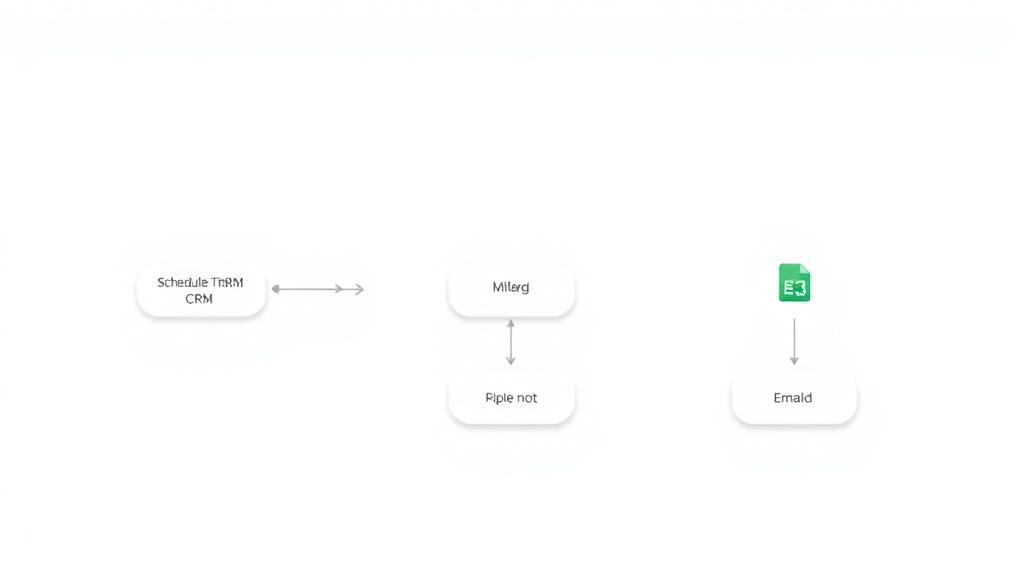
Purpose of workflow: The purpose of this workflow is to automate scraping of a website, transforming it into a structured format, and loading it directly into a Google Sheets spreadsheet. How it works: 1. Web Scraping: Uses the Jina AI service to scrape website data and convert it into LLM-friendly text. 2. Information Extraction: Employs an AI node to extract specific book details (title, price, availability, image URL, product URL) from the scraped data. 3. Data Splitting: Splits the extracted information into individual book entries. 4. Google Sheets Integration: Automatically populates a Google Sheets spreadsheet with the structured book data. Step by step setup: 1. Set up Jina AI service: - Sign up for a Jina AI account and obtain an API key. 2. Configure the HTTP Request node: - Enter the Jina AI URL with the target website. - Add the API key to the request headers for authentication. 3. Set up the Information Extractor node: - Use Claude AI to generate a JSON schema for data extraction. - Upload a screenshot of the target website to Claude AI. - Ask Claude AI to suggest a JSON schema for extracting required information. - Copy the generated schema into the Information Extractor node. 4. Configure the Split node: - Set it up to separate the extracted data into individual book entries. 5. Set up the Google Sheets node: - Create a Google Sheets spreadsheet with columns for title, price, availability, image URL, and product URL. - Configure the node to map the extracted data to the appropriate columns.
What's Included
- Complete n8n workflow template with 0 nodes. Ready to import and customize.
Requirements
n8n instance (self-hosted or cloud). credentials.
How to Use
1. Download the workflow JSON 2. Import into your n8n instance 3. Configure credentials for 4. Activate and enjoy automation
Apps in this n8n workflow
How to import this template into n8n
- Download the workflow JSON file from this page.
- In n8n, open Workflows, create a new workflow and choose Import from File.
- Open each node that shows a warning and connect your own credentials.
- Run the workflow once manually to check the output before you activate it.
- Importable n8n workflow JSON file
- Download with Builder Pro or Agency Unlimited
- Built for n8n v1.0++
- Setup time: 5-15 min
Included in Builder Pro — $19/mo, 4,177 premium workflows
Before you activate
Templates are reviewed before they are listed. Test with your own credentials and data before running it in production.
100% Secure Checkout
Refund requests within 7 days of a new subscription
Dependencies & Requirements
⚠️ 2 services require credentials. Make sure you have accounts set up before importing.
0 reviews
No reviews yet.
Questions & Answers
Log in to ask a question.
No questions yet. Be the first to ask!
People Also Bought
Related Automation n8n templates
- Generate AI Videos with Google Veo3, Save to Google Drive and Upload to YouTube
- Scrape and summarize webpages with AI
- Create a Branded AI-Powered Website Chatbot
- Angie, Personal AI Assistant with Telegram Voice and Text
- AI agent chat
- Automated Web Scraping: email a CSV, save to Google Sheets & Microsoft Excel
- Respond to WhatsApp Messages with AI Like a Pro!
- Basic Automatic Gmail Email Labelling with OpenAI and Gmail API