Generate Single-Use Personalized Calendly Links with Google Sheets Tracking & Slack Alerts
Curated by n8n Markets team
Last updated: March 8, 2026
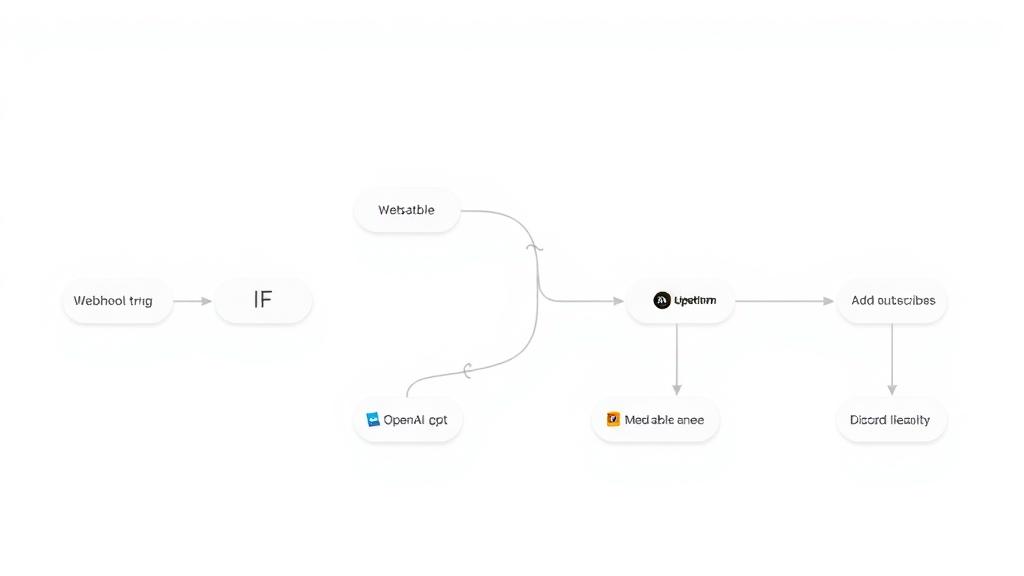
## This n8n template implements a Calendly Booking Link Generator that creates single-use, personalized booking links, logs them to Google Sheets, and optionally notifies a Slack channel ## Who's it for This template is designed for teams and businesses that send Calendly links proactively and want to generate trackable, single-use booking links on demand. It’s perfect for: - Sales and SDR teams sending 1:1 outreach and needing unique booking links per prospect - Customer success and support teams who want prefilled, one-click rescheduling or follow-up links - Marketing and growth teams that want UTM-tagged booking links for campaigns - Ops/RevOps who need a central log of every generated link for tracking and reporting ## How it works / What it does This workflow turns a simple HTTP request into a fully configured single-use Calendly booking link: 1. Webhook Trigger (`POST`) - Receives JSON payload with recipient details: - `name`, `email`, optional `event_type_uri`, optional `utm_source` 2. Configuration & Input Normalization - `Set Configuration` extracts and normalizes: - `recipient_name`, `recipient_email` - `requested_event_type` (can be empty) - `utm_source` (defaults to `"n8n"` if not provided) 3. Calendly API – User & Event Types - `Get Current User` calls `GET /users/me` using Calendly OAuth2 to get the current user URI - `Extract User` stores `user_uri` and `user_name` - `Get Event Types` calls `GET /event_types?user={user_uri}&active=true` to fetch active event types - `Select Event Type`: - Uses `requested_event_type` if provided, otherwise selects the first active event type - Stores event type URI, name, and duration (minutes) 4. Create Calendly Single-Use Scheduling Link - `Create Single-Use Link` calls `POST /scheduling_links` with: - `owner`: selected event type URI - `owner_type`: `"EventType"` - `max_event_count`: `1` (single use) 5. Build Personalized Booking URL - `Build Personalized Link`: - Reads the base `booking_url` from Calendly - Appends query parameters to prefill: - `name` (encoded) - `email` (encoded) - `utm_source` - Stores: - `base_booking_url` - `personalized_booking_url` - `recipient_name`, `recipient_email` - `event_type_name`, `event_duration` - `link_created_at` (ISO timestamp) 6. Optional Logging and Notifications - `Log to Google Sheets` (optional but preconfigured): - Appends each generated link to a “Generated Links” sheet - Columns: Recipient Name, Recipient Email, Event Type, Duration (min), Booking URL, Created At, Status - `Notify via Slack` (optional): - Posts a nicely formatted Slack message with: - recipient name & email - event name & duration - clickable booking link 7. API Response to Caller - `Respond to Webhook` returns a structured JSON response: - `success` - `booking_url` (personalized) - `base_url` - `recipient` object - `event` object (name + duration) - `created_at` - `expires` explanation (`"Single-use or 90 days"`) The result is an API-style service you can call from any system to generate trackable, single-use Calendly links. ## How to set up ### 1. Calendly OAuth2 setup - Go to `calendly.com/integrations` or `developer.calendly.com` - Create an OAuth2 application (or use an existing one) - In n8n, create Calendly OAuth2 credentials: - Add client ID, client secret, and redirect URL as required by Calendly - Connect your Calendly user account - In the workflow, make sure all Calendly HTTP Request nodes use your Calendly OAuth2 credential ### 2. Webhook Trigger configuration - Open the `Webhook Trigger` node - Confirm: - HTTP Method: `POST` - Path: `generate-calendly-link` - Response Mode: `Response Node` (points to `Respond to Webhook`) - Copy the Production URL from the node once the workflow is active - Use this URL as the endpoint for your CRM, outbound tool, or any system that needs to request links Expected request body: ```json { "name": "John Doe", "email": "john@example.com", "event_type_uri": "optional", "utm_source": "optional" } ``` If `event_type_uri` is not provided, the workflow automatically uses the first active event type for the current Calendly user. ### 3. Google Sheets setup (optional but recommended) - Create a Google Sheet for tracking links - Add a sheet/tab named e.g. “Generated Links” - Set the header row to: - `Recipient Name`, `Recipient Email`, `Event Type`, `Duration (min)`, `Booking URL`, `Created At`, `Status` - In n8n: - Create Google Sheets OAuth2 credentials - Open the `Log to Google Sheets` node - Update: - `documentId` → your spreadsheet ID - `sheetName` → your tab name (e.g. “Generated Links”) ### 4. Slack notification setup (optional) - Create a Slack app at `api.slack.com` - Add Bot Token scopes (for basic posting): - `chat:write` - `channe
What's Included
- Complete n8n workflow template with 0 nodes. Ready to import and customize.
Requirements
n8n instance (self-hosted or cloud). credentials.
How to Use
1. Download the workflow JSON 2. Import into your n8n instance 3. Configure credentials for 4. Activate and enjoy automation
Apps in this n8n workflow
How to import this template into n8n
- Download the workflow JSON file from this page.
- In n8n, open Workflows, create a new workflow and choose Import from File.
- Open each node that shows a warning and connect your own credentials.
- Run the workflow once manually to check the output before you activate it.
- Importable n8n workflow JSON file
- Download with Builder Pro or Agency Unlimited
- Built for n8n v1.0++
- Setup time: 5-15 min
Included in Builder Pro — $19/mo, 4,177 premium workflows
Before you activate
Templates are reviewed before they are listed. Test with your own credentials and data before running it in production.
100% Secure Checkout
Refund requests within 7 days of a new subscription
Dependencies & Requirements
⚠️ 2 services require credentials. Make sure you have accounts set up before importing.
0 reviews
No reviews yet.
Questions & Answers
Log in to ask a question.
No questions yet. Be the first to ask!
People Also Bought
Related Automation n8n templates
- Generate AI Videos with Google Veo3, Save to Google Drive and Upload to YouTube
- Scrape and summarize webpages with AI
- Create a Branded AI-Powered Website Chatbot
- Angie, Personal AI Assistant with Telegram Voice and Text
- AI agent chat
- Automated Web Scraping: email a CSV, save to Google Sheets & Microsoft Excel
- Respond to WhatsApp Messages with AI Like a Pro!
- Basic Automatic Gmail Email Labelling with OpenAI and Gmail API